
Photo Merge Online
Combine two or more photos in your browser. Choose a layout, resize its regions, and set the canvas ratio and export size.
Choose at least two photos to start.
Your collage stays in this browser. We do not upload the photos.
Example using the tool
Original shots


Merge selected details
Finished photo
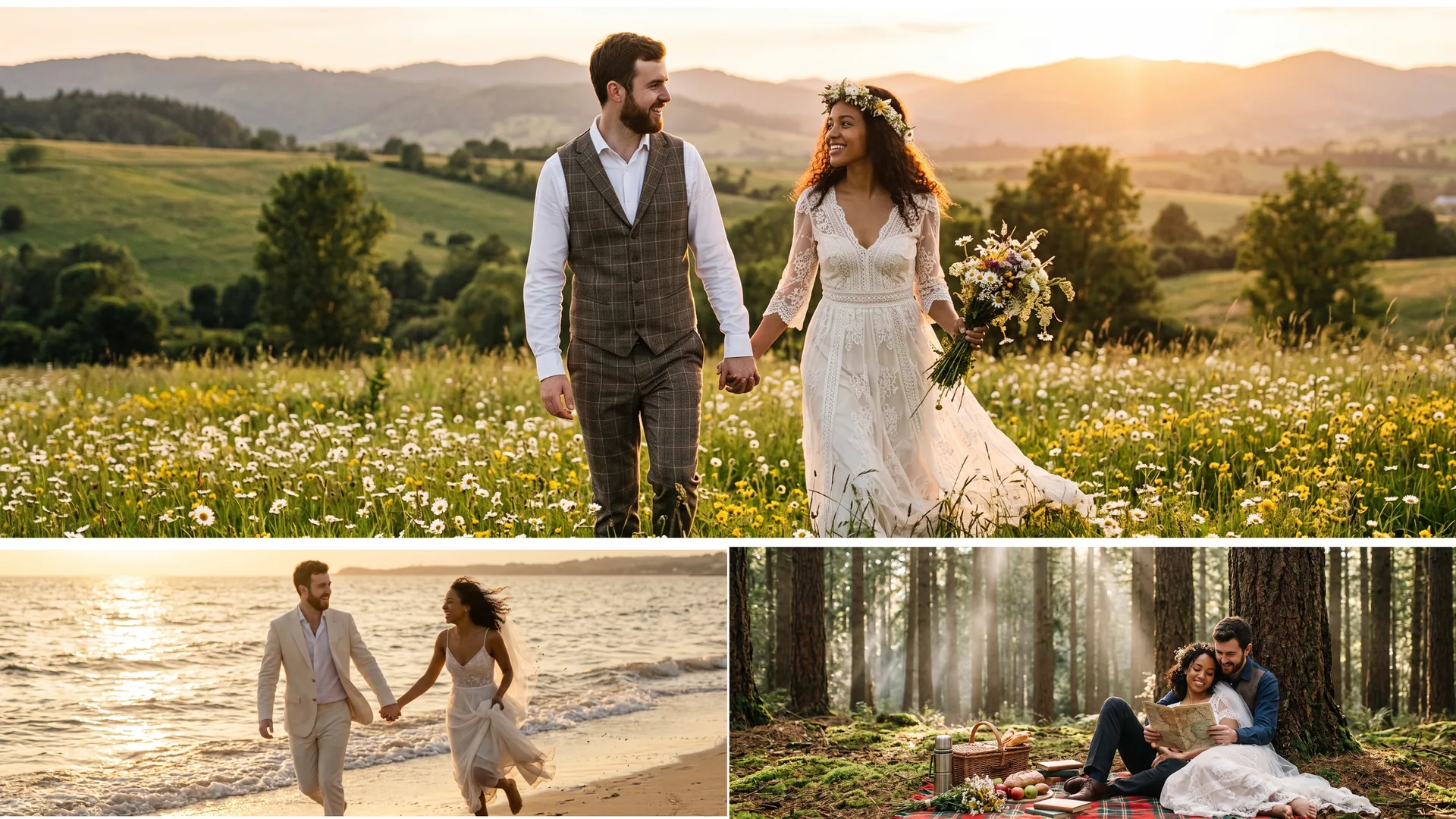
The source photos are AI-generated examples; the finished image is an actual collage-tool output.
How to Merge Two Photos Into One
Choose two or more photos, pick a layout and download for free. Set the canvas ratio and export long edge independently. Photos keep their aspect ratios and are shown in full by default. The output is limited to 40 million pixels.
Combine Two Pictures Into One, Side by Side
Choose a preset or split regions yourself. Set a common or custom canvas ratio, then choose the export long edge. Drag dividers to resize regions and assign photos independently.
Photos are shown in full by default with background padding. Each region can crop to fill, with adjustable framing. Regions can be empty or reuse a photo. The specified export dimensions may resize the original photos.
How to Combine Multiple Photos Into One Grid
Choose a preset or split regions yourself. Assign photos independently, then drag to position them and use corner handles or two fingers to resize. Canvas and export settings are available in the compact toolbar.
Which Layout Should You Use?
Use a horizontal or vertical layout for a comparison, a grid for several photos, or a main-photo layout to emphasize one image. Any region can be split again; custom layouts support up to ten regions.
Photos Stay Photos: What This Tool Does Not Do
This tool arranges your photos on one canvas. It does not change expressions, repair eyes or replace faces. For people inside a group photo, use the full group photo editor or the dedicated eye-repair tool.
What You Need
Choose 2–10 JPEG, PNG, WebP or HEIC files, each up to 25 MB. HEIC converts locally. There is no login or credit charge for collage downloads. Everything happens in this browser; we do not upload your collage source photos.
- Combine Photos and Merge Photos Into One
- Photo Merge Online
- Fix Closed Eyes in a Photo
- Full Group Photo Editor
FAQ
Is photo merge online free?
Yes. Collage previews and downloads are free, with no account or credits required. This includes custom layouts, canvas ratios and export sizes. Face replacement and eye repair are separate tools whose unmarked exports require a registered account and credits.
Can I merge more than two photos?
A collage can use up to ten source photos and ten regions. Choose side-by-side, stacked, grid or main-photo presets, or split regions yourself. Each region can use any source photo, reuse a photo or stay empty. Photos are shown in full by default, with crop-to-fill available per region.
Will merging reduce quality?
The export is rendered from the decoded source photos at your chosen output dimensions, rather than enlarged from the preview. Those dimensions may resize the photos; a larger output does not restore missing detail. PNG uses lossless encoding, while JPEG, WebP and HEIC conversion can introduce compression. Output is capped at 40 megapixels; reduce the export long edge if needed.
Can I merge a JPG and a PNG?
Yes. JPEG, PNG and WebP can be mixed in the same layout, and HEIC photos are converted locally before use. Choose PNG, JPEG or WebP for the finished collage. The chosen background fills padding between images; transparent input areas are composited against that background as part of the layout.
Do I need to install an app?
No. The tool runs in supported desktop and mobile browsers, and photos are selected from your device. Collage creation does not upload your photos to our servers. Keep the page open until the download completes. Clearing the tool or leaving the page releases its images from the current editing session.
Can I merge photos of different sizes?
Yes. Each region can show a photo in full with background padding or crop it to fill. Choose the canvas ratio and export long edge separately, then check the preview before downloading.